
Good morning everyone, hope you’re all ok. It’s been a bit of a bad week for me both mentally and physically health-wise. I’m going to be honest in case anyone else has been through the same thing or anything similar, I’ve been struggling a lot with my depression especially because of the lies the doctor wrote about me, and even more so because the following day we received a letter to say we’ve been given less than a month to find a new doctors surgery as we’re being kicked out because we wrote a complaint about the threat that I received and the volatile behavior we received from the doctor, whatever happened to freedom of speech?. Then where the physical is concerned, as I’ve mentioned in previous posts, as of this year I was diagnosed with Costochondritis, now one of the “wonderful perks” of the condition is it can cause you to feel like you’re having a heart attack at times and on Saturday that part of the condition almost cost me my life as the pressure/pain in my heart got too extreme that my eyes glassed over and I couldn’t breathe, I honestly thought I was going to die, thankfully I’m recovering now, but it was a very scary experience, unfortunately, though it happened on my mums birthday which wasn’t exactly the kind of stress-free day that she was supposed to be having, but I’m making it up to her by using our joint birthday mini-vacation to see my sister and nephews as a way to treat her!
Now before we go away for a couple of days and because of what happened last week, I’ve been using the past couple of days to rest and sort my pictures out. Knowing the best way to store photos is important. Photos are more than just a bit of color on paper or information on a computer. They’re works of art and captured moments from our lives. So we want to ensure they’re safe and secure. There’s nothing worse than losing your photos. It’s a heartbreaking experience. And for professionals, losing photos can be costly. It could cost you a job or damage your reputation. But even for amateurs, it can be equally upsetting. That’s why storing your photos is so important. Even if you’re not a professional photographer, you should take a professional approach to photo storage. Thankfully, here are some solutions to help!

Photographers have to make photo storage a top priority. Even beginners soon realize how important this is. Losing any photo can be heartbreaking, but losing professional pictures can cost you your livelihood. The best ways to backup photos – make it simple and easy so you can safely and securely save your photos and other images. It’s best to not just rely on keeping your photos on your computer, as hard drives can fail, and folders can be accidentally deleted. You really need to have some form of backup in place so you don’t accidentally lose your precious images forever. The ‘rule of three’ is the best way to backup your photos. This means using at least three different backup methods – two on-site, and one off-site to minimize, say, the risk of fire or theft. Take a look at 8 ways you can save your pictures.
1. SD cards
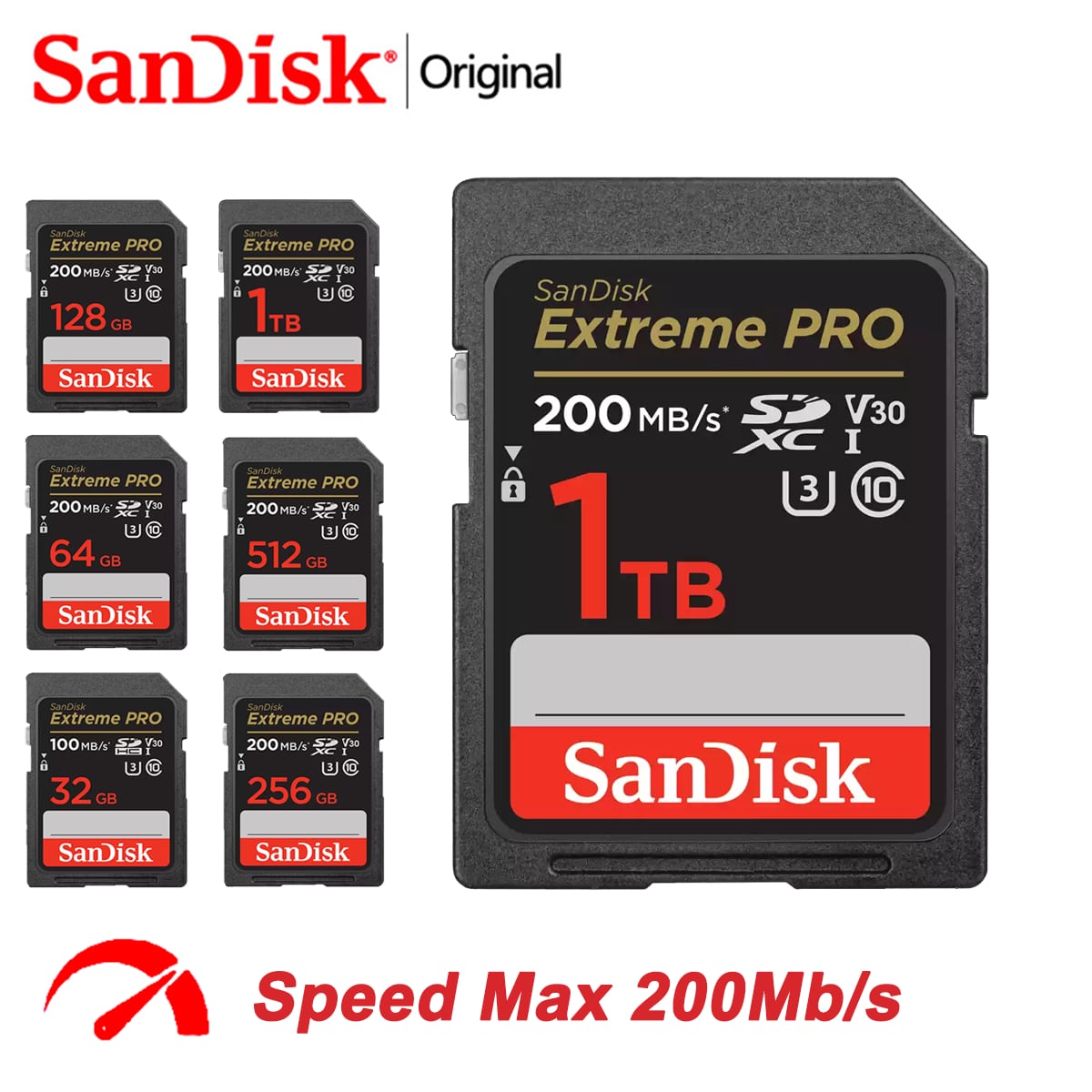
Recordable media such as SD cards can be a great way to backup your photos. MicroSD cards with 512GB or 1TB space are not uncommon now and will make it extremely convenient for storing media without worrying about transferring data every few weeks. But a complication here is that if you’re not careful, you could end up with a large collection that is difficult to organize. This can be especially the case when dealing with SD cards from multiple cameras, or a growing pile of recorded cards. This not only means things becoming potentially mixed up, but also lost or damaged. Saving to recordable media is fine as a short-term solution. But it may not be the best way to backup photos in the long-term, especially when it comes to future photo organization and management
2. External hard drive

You might think your photo files are safe on your computer or laptop, but believe me—they’re not! Computers and laptops are great tools and essential to modern photography. But they’re fragile. They can suffer physical damage from dropping it or spilling something on it. And theft is also a concern. You can also encounter technical issues like viruses or hardware malfunctions. If a computer develops a software problem, sometimes the only solution is to wipe the whole thing. That means your photos, too! That’s why an external hard drive is just as important as your actual device. A hard drive can store thousands of image files and hours of video footage. Even still, another advantage external hard drives have over recordable media is the bigger and cheaper storage space, with external hard drives now commonly offering over 1TB of storage or more.
*As an additional tip, consider having two external drives, with one specifically used to archive older images you no longer use, or barely ever use, while also having a second for active use. That way you build in extra redundancy, and is especially handy if you find yourself on the go with a laptop, as it means you don’t have to risk losing your entire library if something were to happen to the external hard drive you’re outside and about with, whether from failure, accident, or even theft.”
3. USB Flash Drives
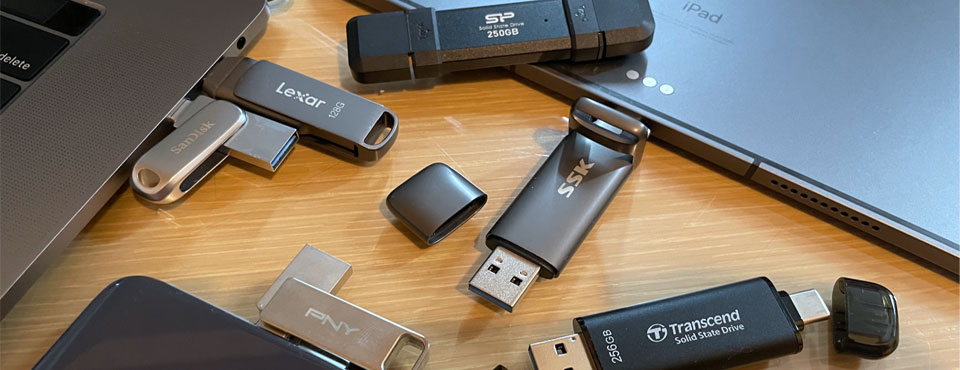
USB flash drives are another useful tool for storing photos, especially if portability is an issue. They are small and convenient. And some have surprisingly large storage capacities. Not only do USB drives not require leads connecting up to your PC, but they can be easily stored away until needed, and easily carried for use on the go as well. Better still, USB flash drives tend to be relatively cheap while offering a large storage space. The process is quick and painless, and you can transfer hundreds, perhaps even thousands, of photos all at once. The convenient size makes them portable, even more so than external hard drives. However, the more devices and photos you have, the more difficult this can be to put in place. This is especially true as USB drives can suffer the same issue as SD cards in that eventually you end up with a collection and need to keep sorting them out and often can’t find the one you need when you want it. Even still, USB drives are probably the simplest backup method for most files for most people…just remember to keep them safely stored away from natural hazards.
4. Software Libraries
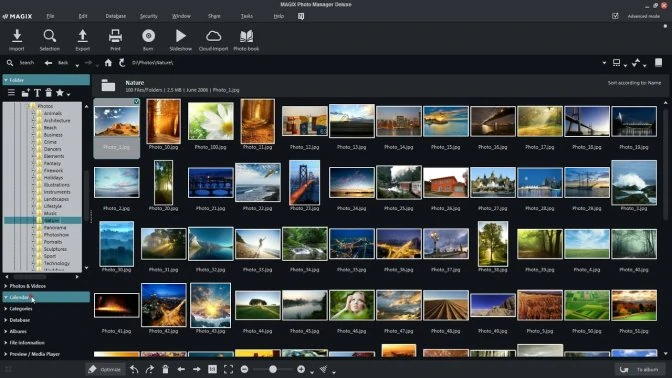
The best offense for any potential disaster is a good defense. It’s recommended you use multiple hardware options to backup and store your photos, and there are different software options you can use. Apple used to offer Aperture to help organize photos, but there are alternatives available such as iPhoto Library Manager, and the same trick works in iPhoto as well. The concept is simple: Move older, unused, and duplicate images to a separate library stored on an external drive, preferably one that doesn’t see daily use. This tip works best when libraries are stored on some kind of redundant storage like a Drobo or network-attached storage (NAS hard drive), or in conjunction with the advice offered in our next method, which also has the benefit of freeing up precious internal space on modern flash storage drives.
5. Back-Up Your Photos on the Cloud

If you want to avoid filling your house with electronic devices, you can use online cloud services. A cloud storage system serves the same function as an external hard drive—only online. No USB cables are needed here! Plus, cloud storage services are simple and easy to use. First, you copy the files from your device and move them to the cloud. Then, you can log in and access them from any device with an internet connection. Picturelife, Adobe Creative Cloud, and ThisLife make it easy to back up photos from any mobile or desktop device, providing an additional layer of security. They also offer the tools necessary to organize and edit photos from anywhere, no matter which device or web browser you happen to be on at the time. Several cloud storage services offer free storage – ideal as a secondary backup location. . Dropbox is excellent, but the free storage capacity is limited to 2 GB. Google Drive is another great cloud storage service with 15 GB for free. There are also specific cloud photo services, such as Google Photos. It makes storing and organizing photos from all your mobile devices easy. If you want more photo storage, you’ll need to pay. Cloud storage services such as pCloud and Sync have different plans you can purchase.
6. Print them out
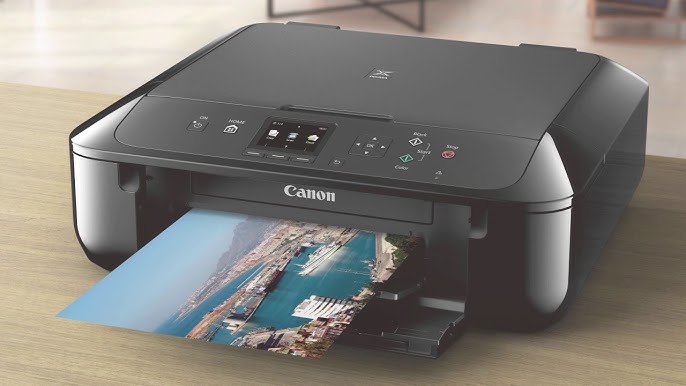
Unless your hobby is scrapbooking or you grew up in the Fotomat generation (kids, ask your parents), printing out thousands of digital photos might seem like a waste of money, time, and trees. Just because we’re so enamored with paperless photos now, the time may come when having a closet full of prints might be preferred or even come in handy. At the very least, they’re a decent hard copy that can be used to scan back into the computer, should the worst-case scenario transpire and your digital memories are wiped out. You can use one of the best photo printers at home or in the office. But these days, online photo printing services like Shutterfly can be more affordable, offering unlimited photo storage from desktop or mobile devices (and yep, that counts as another backup). The company is quite aggressive with weekly deals to make prints, custom books, and other photo-based products on the cheap.
7. Save Your Photos as Email Attachments

Email is a great way of staying connected and sending information electronically. But you can also use it to store photos and files. Create a draft email, attach the photos you want to store, and send the email. Only this time, you send the email to yourself. If you have two email accounts, you can send them from one to the other. Once received, the attached photos are stored on your email server. You can download them from any device. And you can organize emails so they don’t get lost or deleted accidentally. The problem with this system is that emails have very limited capacity. You can only attach a few photos to each email. If you want to store many photos this way, you’ll send yourself a lot of emails! You can turn your photo folders into zip files to reduce their size. This allows you to send more information in each email. But it’s still very limited.
8. Go Old School and Burn Your Photos to CD
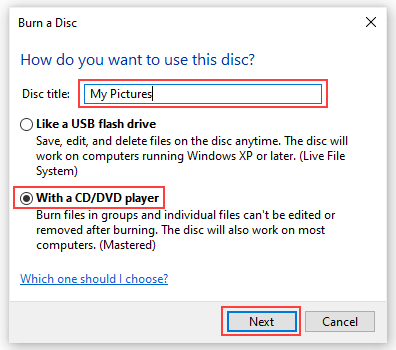
Put the matches down. We’re sure burning files to CDs is a hazy memory for you, too! But saving files on a CD or DVD is a great way to back up photos You can transfer the files from your computer to a CD. A single CD can store hundreds of photo files. It can be a bit time-consuming, but you can create a whole library of photos on a CD. It also frees up a lot of space on your hard drive. This storage system is far from perfect. You need to store the CDs carefully so they don’t get damaged. And they also take up space in your home or office. You also need to make sure you label everything correctly. All blank CDs look the same. So be sure to note which photos are on each CD. And, of course, you need to buy the CDs. It’s an additional cost you have to consider. Plus, make sure your computer or laptop has a disk drive first!
*BONUS* – Backup And Repeat
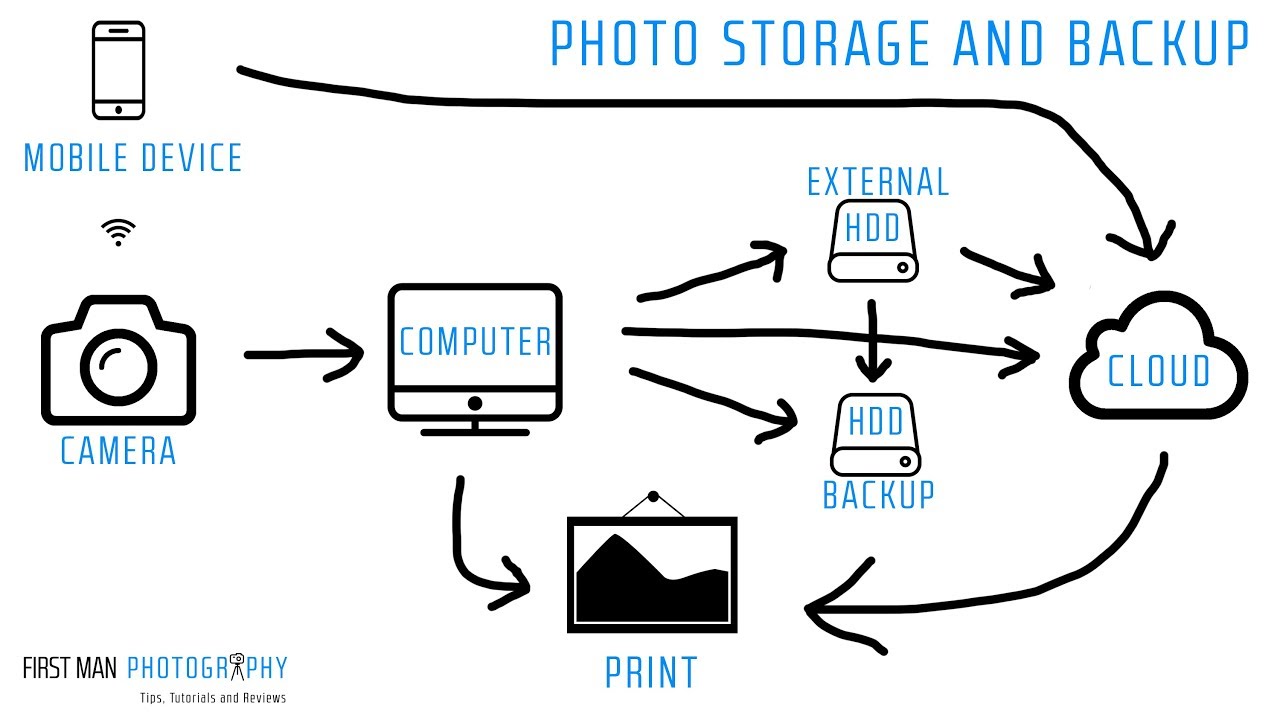
Last but not least, it can’t be stressed enough the importance of creating a solid backup routine to keep photos, videos, and files safe. Many of us don’t even bother printing our photos anymore since they can easily carry entire collections on a smartphone or tablet. These files are effectively your “negatives,” and should be treated as such – even if that means offloading a copy onto some form of storage media and shoving it in a shoebox, similar to what generations past did with the real thing. Of course, keeping two copies of your digital photos in the same location isn’t necessarily a good idea, either. A fire, flood, or other natural disaster could wipe out everything you own in a heartbeat. This is where offline storage comes into play. Services like CrashPlan, Carbonite, or LiveDrive can securely back up entire desktop systems (including the digital photos stored there) for pennies per day without user interaction.
*Now would also be a great time to invest in a new high-capacity USB 3.0 external hard drive (they’re quite cheap these days), and flip on Time Machine. This built-in backup software comes standard with OS X. Many inexpensive NAS devices also support Time Machine, and products from Synology, ASUSTOR, and others can even access files remotely via mobile apps. Just be sure to make a backup of your backup every few years in case the original drive decides to meet its maker!*
There are many ways you can store your photos to keep them safe. But choosing the best way to store photos depends on your needs. We hope our list of the best ways to store photos has shown you how to eliminate the risk of losing your beloved library!
Thank you for visiting my blog and reading today’s post! Have a lovely day, and even more, have an amazing week, I shall see you next time, for now though, I’m off to visit my sister who I hope is ready for a massive but gentle hug! Bye for now.


 Peytons View
So sorry you’ve been having health (and doctor) issues! 😦 I hope things will get better very soon.
Thanks for this excellent tutorial about saving photos! I will pass it along so others may benefit as well. I’ve used every method you outlined, except burning them onto a CD.
LikeLiked by 1 person
Thank you for your kind words 🙏🏼 I hope so too.
No problem, happy to be of help 😊 thank you so much. I’ve used it a couple of times but it’s not one of my favourite methods, I much prefer to use a usb flash drive or an external hard drive 😊
LikeLiked by 1 person
Good advice. What kind of camera do you use? Nikon? Canon?
LikeLiked by 1 person
Thank you ☺️ I use a Nikon D3300.
LikeLiked by 1 person
I have an older D300 😊
LikeLiked by 1 person